Mac how-to
Clear AI agent history and disk leftovers on a Mac
Updated · Paths checked against current Claude Code, Cursor, Codex and Gemini layouts
The slow Mac is usually two problems. Ghost processes are still holding RAM. Session history, caches and old build output are still holding disk. This guide does the RAM check first, then the files, for every AI agent, not one vendor.
Quick answer
See how much RAM node still holds. Then measure ~/.claude, ~/.codex, ~/.gemini, ~/.cursor and Cursor's Application Support folder. Move old session files you have opened to the Trash. Keep settings and sign-in files. Do the same for build output and for files an app left behind.
Step by step
-
See the RAM node still holds
Files do not free RAM. Running ghosts do. On macOS,
psreports RSS in kilobytes. This sums every process whose command mentions node, and skips the search itself:ps -axo rss,command | awk '/[n]ode/ {s+=$1} END {printf "node RSS about %.1f GB\n", s/1024/1024}'A multi-gigabyte total after a day of agent sessions is the RAM side of this problem. To see which processes those are, and stop the tree safely, use the orphaned node guide. Come back here for the disk.
-
Measure every agent's folders
These are the common locations as of October 2026. A missing path just means you do not use that agent.
duprints each size:du -sh ~/.claude ~/.codex ~/.gemini ~/.cursor "$HOME/Library/Application Support/Cursor"- Claude Code keeps projects, history and settings in
~/.claude. Some installs also use~/.claude.jsonin your home folder. Leave that file alone until you know you do not need it. - Codex keeps sessions under
~/.codex. Sign-in is often~/.codex/auth.json. Do not delete that if you want to stay signed in. - Gemini CLI uses
~/.gemini. - Cursor uses both
~/.cursorand~/Library/Application Support/Cursor. The Application Support folder is the editor itself, not just chat history.
If you use another agent, find its folder before you delete anything. Aider, for example, writes history files inside the project. The names above are the common ones, not a full list of every AI agent.
- Claude Code keeps projects, history and settings in
-
Separate history from settings
Safe to review, once you have opened the file and recognise it:
- Old session transcripts and
.jsonllogs under an agent'sprojectsorsessionsfolder. - Caches:
Cache,CachedData,Code CacheandGPUCacheinside Cursor's Application Support folder. The editor rebuilds them.
Keep, unless you want to sign in again and lose local setup:
settings.json,auth.json, and anything named credentials or config.- The whole of
~/Library/Application Support/Cursor. Deleting it resets Cursor. - Your project source. Agent history is not your repo.
- Old session transcripts and
-
Remove old session files you opened
List the large files first. Twenty megabytes is only a starting line. Your interesting files may be smaller, and a cache may be larger:
find ~/.claude ~/.codex ~/.gemini -type f -size +20M -printOpen one path in a text editor. If it is an old transcript and you do not need it, move that file to the Trash. Replace the example path with the file you opened:
mv ~/.claude/projects/example/old-session.jsonl ~/.Trash/Do not run
rm -rf ~/.claudeorrm -rf ~/.codex. That removes settings and sign-in along with history. The Trash is reversible. A recursive delete of a home folder is not. -
Clear old build output
Agents also leave build folders in checkouts you are done with. Measure a project you name, not your whole home folder:
du -sh ~/Projects/old-checkout/node_modules ~/Projects/old-checkout/.next ~/Library/Developer/Xcode/DerivedDatanode_modulesand.nextcan be rebuilt, but a dev server you still want may be using them. Stop that process first. Quit Xcode before moving DerivedData. Then move one folder you chose:mv ~/Projects/old-checkout/.next ~/.Trash/Docker images and unused volumes are a separate pile.
docker system dfshows the size. Do not rundocker system pruneuntil you have read what it will delete. -
Find files an app left behind
Dragging an app out of
/Applicationsdoes not always remove its support files. For an app you already deleted, measure the usual spots. Swap in the real name and bundle id (oftencom.company.app):du -sh "$HOME/Library/Application Support/ExampleApp" "$HOME/Library/Caches/com.example.app" "$HOME/Library/Logs/ExampleApp" "$HOME/Library/Preferences/com.example.app.plist"Also look in
~/Library/Saved Application Stateand, for some apps,~/Library/Containers. Move a folder only after the name matches the app you removed. Preferences files are small. Application Support is where the gigabytes hide.
What Spookle does instead
The commands above are the manual version of two Spookle jobs. One is the ghosts: RAM still held, which agent left them, and a confirm before a tree is stopped. The other is disk: agent history, old build output, Big files, and an uninstaller that lists the files an app left behind.
Big files
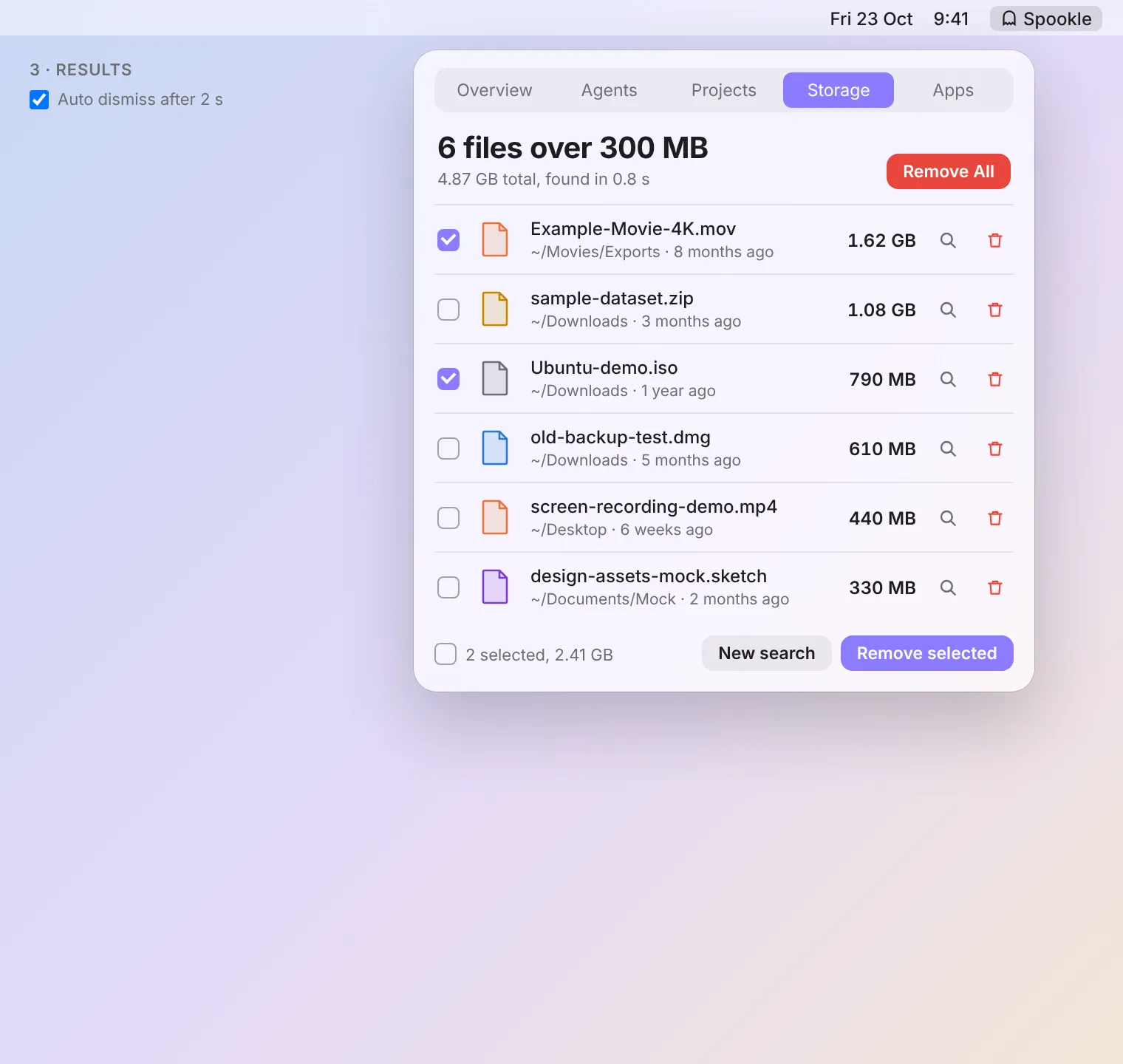
Pick a size, such as 300 MB, and Spookle lists every file over it with its folder. Select what you do not need, confirm, and the files go to the Trash. Undo, or Command Z, puts the last batch back where it was. Spookle never deletes a file outright.
Spookle shows the review list before anything is removed, for every AI agent. See Storage and Big files.
Questions
Will this log me out of every AI agent?
Not if you leave settings and sign-in files in place. Deleting a whole agent folder, or Cursor's Application Support folder, can sign you out and reset the app. Remove old session files you have opened, not the folder that holds them.
Does clearing history free RAM?
Deleting files frees disk, not RAM. RAM comes back when you stop the ghost processes that are still running. Do that first, then clear the disk.
Which agents does this cover?
Every AI agent that writes a folder on your Mac. The commands start with Claude Code, Cursor, Codex and Gemini because those paths are common. If you use another agent, measure its folder before you delete anything.